
A free YouTube video downloader may seem like the easiest solution, but the right method depends on the video and how you plan to use it.
If the video is your own upload, YouTube provides an official way to download it as an MP4 file. If you simply want to watch an eligible video without an internet connection, YouTube’s built-in Download feature can provide offline playback in supported locations and on supported devices.
Third-party downloader websites are another option people commonly search for, but they come with two important considerations: copyright permission and website security. Not every YouTube video is available for unrestricted downloading or reuse.
This guide explains the practical ways to download YouTube videos, including how to download your own videos, how official offline downloads work, and what to check before using an external downloader.
Table of Contents
What Is a Free YouTube Video Downloader?
A free YouTube video downloader is a tool or service that allows users to save YouTube content for later use. Depending on the service, it may offer video downloads in formats such as MP4 or provide options for different resolutions.
Downloader services generally fall into three categories:
- YouTube’s official download features for eligible offline viewing
- YouTube Studio for downloading videos you uploaded
- Third-party websites or applications that convert or save YouTube content
These options are not interchangeable. An official YouTube offline download is designed primarily for watching content inside YouTube, while a downloaded copy of your own upload can be obtained as a normal video file.
How to Download Your Own YouTube Video
If you uploaded the video yourself, using YouTube Studio is the simplest and safest approach.
Download Your Video on a Computer
Follow these steps:
- Open YouTube Studio and sign in to the Google account connected to your channel.
- Select Content from the left-hand menu.
- Find the video you want to save.
- Open the video’s menu using the three-dot icon.
- Select Download.
- Save the MP4 file to your computer.
YouTube officially supports downloading videos that you uploaded, although some videos may not be available for download because of restrictions. YouTube also provides Google Takeout for retrieving uploaded videos.
This method is particularly useful if you need a backup of your channel content or want to edit a previously uploaded video.
Why Download Your Own Videos?
Keeping local copies of your videos can be useful for:
- Creating backups
- Re-editing old content
- Moving projects between computers
- Keeping an archive of your channel
- Recovering a copy if your original project file is lost
If you are a creator, maintaining your own original video files is generally better than relying entirely on a platform copy.
How to Download YouTube Videos for Offline Viewing
If you do not own the video and only want to watch it later, YouTube’s official offline feature is the better place to start.
When a video supports offline viewing, you may see a Download button in the YouTube app or supported YouTube experience. After downloading it, you can access the video through YouTube’s Downloads section.
The availability of offline downloads can depend on the video, location, device, and account or membership status.
Step-by-Step Offline Download
On a supported mobile device:
- Open the YouTube app.
- Find the video you want to watch later.
- Open the video.
- Look for the Download button.
- Select the available quality if YouTube gives you a choice.
- Wait for the download to finish.
- Open Downloads in YouTube when you want to watch it offline.
This is different from downloading an MP4 file to your phone’s gallery.
Does YouTube Give You an MP4 File?
Not necessarily.
YouTube’s official offline feature is designed for playback through YouTube. Downloaded content can be stored in a way that prevents it from functioning like a normal video file that you can freely move between applications.
This is why you may download a video successfully but not find an MP4 file inside your phone’s normal gallery or file manager.
If you need an actual MP4 file, the clearest official option is downloading a video that you uploaded yourself through YouTube Studio.
Can You Download YouTube Videos Without Premium?
It depends on what you mean by “download.”
For your own uploaded videos, YouTube provides a download option through YouTube Studio without requiring Premium.
For other people’s videos, official offline availability varies. Some videos may be available for offline viewing through YouTube, while other videos may require YouTube Premium or may not support offline playback at all.
Therefore, there is no single method that legally turns every YouTube video into a freely downloadable MP4.
How Third-Party YouTube Downloaders Work
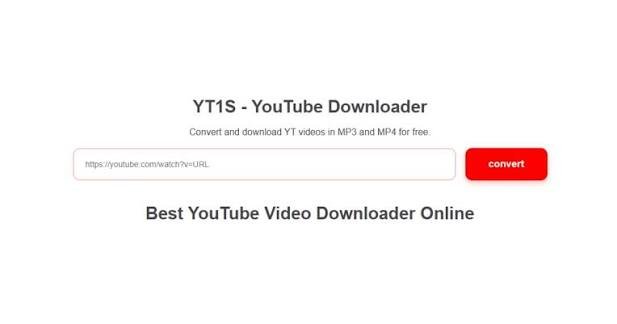
Third-party free YouTube video downloader websites usually ask you to provide a YouTube video URL. The service then processes the URL and may present download options.
A typical process looks like this:
- Open the YouTube video.
- Copy its URL.
- Visit the third-party downloader.
- Paste the URL into its input field.
- Select an available format or quality.
- Start the download if the service provides one.
However, the technical ability to download a video does not automatically mean you have permission to download or redistribute it.
YouTube’s Terms of Service place restrictions on downloading content unless the service authorizes it, the rights holder has given permission, or applicable law permits the activity.
For that reason, users should check the rights associated with a video before saving or reusing it.
Is Using a Free YouTube Video Downloader Safe?
Safety varies considerably between third-party services.
Some downloader websites rely heavily on advertising and may display pop-ups, redirects, fake download buttons, or requests to install additional software.
Be cautious if a downloader:
- Opens multiple unexpected tabs
- Requests unnecessary personal information
- Asks you to install unknown software
- Requires a suspicious browser extension
- Tells you to disable security software
- Displays several misleading “Download” buttons
- Redirects you to unrelated websites
A basic video download should not require your Google password, banking information, or other sensitive account credentials.
If a website behaves suspiciously, close it rather than trying to work around its warnings.
How to Choose a Better YouTube Downloader
If you are researching a free YouTube video downloader, do not judge a service only by its advertised resolution or download speed.
Look at the overall experience.
1. Check the Source
Prefer official YouTube functionality whenever it meets your needs. If you are using an external service, understand who operates it and what it asks you to install or provide.
2. Avoid Unnecessary Downloads
You should be particularly careful with websites that require you to install unknown desktop programs, mobile APK files, or browser extensions before allowing a download.
3. Watch for Misleading Buttons
Advertising can sometimes be placed near legitimate controls. Read the page carefully before clicking anything.
4. Protect Your Accounts
Never enter your Google password into an unrelated downloader simply to download a YouTube video.
5. Respect Copyright
A video being publicly visible on YouTube does not automatically mean that it is free to copy, edit, publish, or redistribute.
Can You Download Someone Else’s YouTube Video?
You may be able to access offline viewing through YouTube where the feature is available, but downloading another person’s content as a separate file is a different issue.
YouTube’s Terms explain that downloading or using content is restricted unless authorized by the service, permitted by applicable law, or supported by the necessary permission from the relevant rights holders.
This distinction is especially important if you plan to:
- Reupload the video
- Post clips on another platform
- Use the video in commercial content
- Add the footage to your own YouTube channel
- Sell or redistribute the downloaded file
Before doing any of these things, check the creator’s permission and the video’s applicable license.
What About YouTube Creative Commons Videos?
Some YouTube videos may be published under Creative Commons licensing.
A Creative Commons license can provide additional permissions, but the exact license terms matter. You should check what the license permits before modifying, distributing, or commercially using the content.
Do not assume that every video available on YouTube can be freely reused simply because it can be viewed publicly.
Can You Download YouTube Videos on Android?
For official offline viewing, Android users can use the YouTube app when a video supports the Download feature.
The general process is:
Open YouTube → Select the video → Tap Download → Choose quality if available → Watch from Downloads.
YouTube also supports storing certain offline downloads on an SD card on compatible Android devices, depending on the available settings and device configuration.
If you need a normal MP4 file, however, downloading your own upload through YouTube Studio is the more appropriate official method.
Can You Download YouTube Videos on iPhone?
On iPhone and iPad, YouTube’s official app can provide offline downloads for eligible content where the feature is available.
The downloaded video is intended to be watched through YouTube rather than treated as a normal MP4 file in the iPhone’s Photos app.
Availability can vary according to the video, location, and account status.
Why Does a YouTube Download Sometimes Fail?
There are several possible reasons.
The video may not support offline playback, your location may not support the feature, or the content may have restrictions. With third-party services, the downloader itself may also be temporarily unavailable or incompatible with the current YouTube URL.
If an official YouTube download is unavailable, do not assume that an external website automatically has permission to bypass that restriction.
For your own content, YouTube Studio is the first method worth checking.
Frequently Asked Questions
What is the best free YouTube video downloader?
For your own uploads, YouTube Studio is the most straightforward official option. For eligible videos that you simply want to watch offline, YouTube’s built-in Download feature is preferable to an unknown third-party service.
Can I download my own YouTube video for free?
Yes. YouTube provides a download option for videos you have uploaded, subject to its applicable restrictions. You can also use Google Takeout to retrieve your uploaded content.
Can I download a YouTube video to MP4?
Your own uploaded videos can be downloaded as MP4 files through YouTube Studio. Official offline downloads of other videos are designed for playback within YouTube and are not necessarily provided as ordinary MP4 files.
Can I download YouTube videos without Premium?
You can download your own uploads through YouTube Studio without Premium. Offline availability for other videos depends on YouTube’s supported features, location, video, and account or membership status.
Is a free YouTube video downloader legal?
There is no universal yes-or-no answer. The legality depends on the content, permission, intended use, applicable law, and YouTube’s terms. You should not assume that a publicly available video is automatically free to download and reuse.
Can I download YouTube videos on my phone?
Yes, eligible videos can be downloaded for offline viewing through the official YouTube app in supported circumstances. These downloads are intended to be accessed through YouTube rather than as unrestricted video files.
Why can’t I find my downloaded YouTube video in my gallery?
If you used YouTube’s official offline feature, the download is managed by YouTube and may not appear as a standard MP4 in your gallery or file manager.
Are third-party YouTube downloader websites safe?
Not automatically. Some may use aggressive advertising, redirects, misleading controls, or unwanted software. Avoid entering sensitive information or installing unknown applications simply to download a video.
Final Thoughts
A free YouTube video downloader can be useful, but the safest method depends on what you are trying to accomplish. If the video belongs to you, download it through YouTube Studio. If you only need to watch an eligible video offline, use YouTube’s own Download feature.
Third-party downloaders require more caution because technical availability, copyright permission, and website safety are separate issues. Before downloading, make sure you have the necessary rights and avoid services that request unnecessary software or sensitive information.
In short, choose the official YouTube option whenever it meets your needs, and treat external downloader websites with caution.