Drive Fitness Test (DFT) is a hard drive diagnostic utility associated with Hitachi Global Storage Technologies (Hitachi GST). It was created to help users and technicians check compatible hard disk drives for hardware problems.
If an older computer was freezing, failing to boot, producing read errors, or showing signs of a damaged hard drive, Drive Fitness Test could be used to investigate whether the HDD itself was responsible.
One of the useful things about DFT was that it could operate independently of the normal operating system. Instead of relying on Windows being installed and working correctly, the utility could be started from bootable media and communicate directly with supported storage hardware.
That made it particularly useful for troubleshooting older PCs.
Today, the Drive Fitness Test is mainly relevant to people working with older Hitachi or IBM hard drives and legacy computer systems. Modern computers often use SSDs, NVMe storage, UEFI firmware, and newer controller technologies that were not the primary environment for which the original DFT was designed.
Table of Contents
What Does Drive Fitness Test Do?
The main purpose of Drive Fitness Test is to determine whether a compatible hard drive is operating correctly and to identify certain hardware-related problems.
Depending on the version and supported hardware, DFT could perform diagnostic operations involving:
- The hard drive’s storage media
- Read operations
- Drive electronics
- Drive information
- S.M.A.R.T. functions
- Certain physical drive problems
- Drive performance and response
The software could therefore be useful when a computer appeared to have a storage problem but the exact cause was unclear.
For example, imagine an older PC suddenly becomes extremely slow and occasionally freezes. Windows troubleshooting might show disk-related errors, but that alone does not prove that the HDD has physically failed.
Running an appropriate hard-drive diagnostic can provide additional evidence.
Why Was Hitachi Drive Fitness Test Created?
Hard drives can fail in several different ways. Sometimes the problem is obvious, such as a drive that is no longer detected by the computer. In other cases, the symptoms are much less clear.
A failing HDD might cause:
- Slow file access
- Repeated read errors
- Operating-system crashes
- Boot problems
- Corrupted files
- Unexpected freezes
- Increasing numbers of bad sectors
- Unusual mechanical sounds
Hitachi developed DFT as a dedicated diagnostic environment for compatible storage products.
Rather than relying entirely on the operating system, the utility could perform its own tests. This was particularly useful for technicians who needed to determine whether an HDD should remain in service or be replaced.
How Does Drive Fitness Test Work?
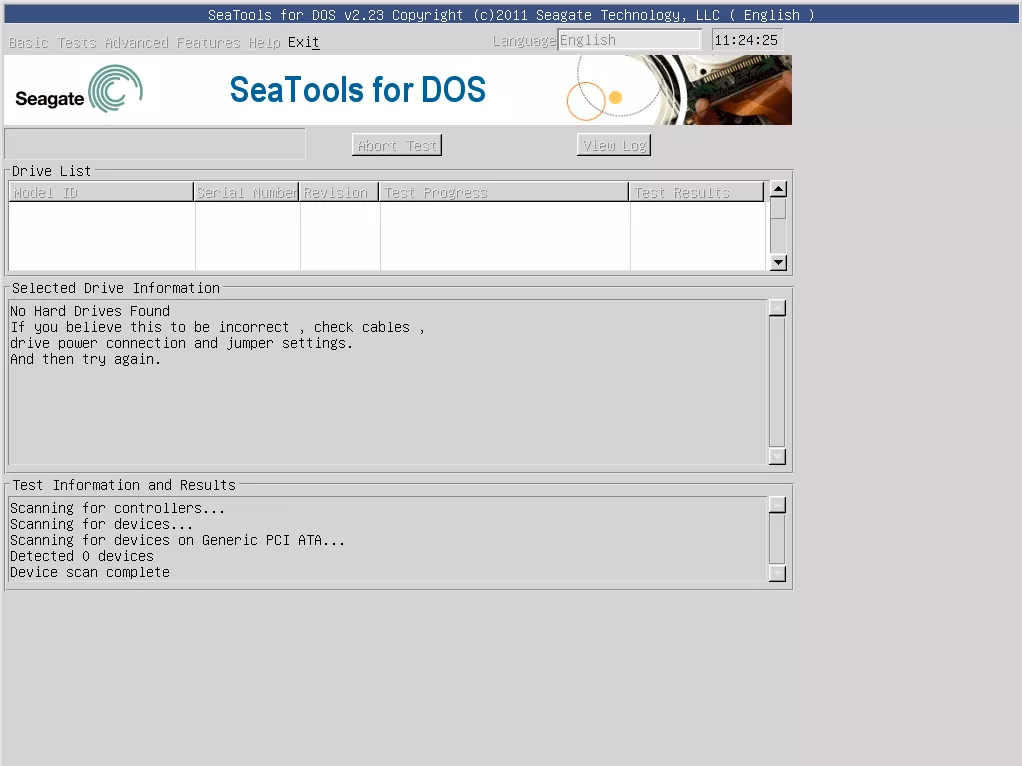
The original Drive Fitness Test was designed as a bootable diagnostic program. Older versions used DOS-based environments and could be distributed through bootable floppy disks or other bootable media.
After starting the computer from the diagnostic media, DFT could detect supported storage devices and present available testing options.
The user could then select an appropriate test.
This approach was different from simply running a Windows program because the diagnostic environment did not depend on the normal Windows installation.
That was a major advantage when the operating system itself was damaged.
However, the same legacy design creates compatibility challenges on modern computers.
Drive Fitness Test Modes
The exact options can depend on the DFT version and the connected hardware, but several important diagnostic functions were associated with the utility.
Quick Test
The Quick Test was intended to provide a faster initial check of a drive.
It can be useful when you want an early indication of whether the HDD has an obvious problem before spending time on a more extensive examination.
A quick result should not necessarily be interpreted as a complete guarantee of drive health. A hard drive can sometimes experience intermittent problems that do not appear during a short test.
Advanced Test
The Advanced Test provides a more extensive examination than a basic quick check.
Because the drive may need to be examined more thoroughly, the test can take considerably longer.
The exact testing time depends on factors such as:
- Drive capacity
- Drive condition
- Interface
- Hardware configuration
- Test type
- Number of areas that need to be examined
If you suspect an HDD is developing problems, a longer diagnostic can provide more useful information than relying solely on a quick test.
Exerciser Test
DFT also included an Exerciser function in supported versions.
The purpose of this type of testing was to place the drive through additional activity and help expose problems that might not become obvious during a simple diagnostic check.
This can be particularly useful when a drive appears to work normally during light use but behaves inconsistently when it is under sustained activity.
Is Drive Fitness Test Safe?
This is one of the most important questions to ask before using any old disk utility.
The standard diagnostic tests of DFT were designed to be non-destructive. However, the program also included functions that could erase or modify information on a disk.
Therefore, users should not assume that every option inside the utility is harmless.
If an HDD contains important photographs, documents, videos, business files, or other irreplaceable information, make a backup before performing operations that could modify the disk.
If the drive is already showing signs of physical failure, repeatedly testing it can also place additional activity on the device. In a serious data-loss situation, recovering important files should take priority over experimenting with diagnostic features.
What Is a DFT Error?
When a diagnostic test detects a problem, DFT can report an error or failure result.
The meaning of that result depends on the test, drive model, and circumstances.
A failed test can indicate that the drive has a hardware-related problem, but users should avoid interpreting an error code without understanding what it represents.
For an older Hitachi drive, the diagnostic result may have been useful for determining whether the drive needed replacement.
If the computer is also showing symptoms such as corrupted files, repeated crashes, or clicking noises, a failure result becomes even more significant.
On the other hand, if DFT cannot detect the drive at all, that does not automatically mean the HDD itself is dead. Connections, controllers, BIOS settings, or compatibility issues can also prevent detection.
What Is the Drive Fitness Test Technical Return Code?
One of the more interesting features associated with Hitachi DFT was the Technical Return Code, often abbreviated as TRC.
For certain supported Hitachi or legacy IBM drives, DFT could produce a technical code when a drive was determined to be defective.
The code could be useful during the warranty or return process because it provided technical information about the diagnostic failure.
This feature was primarily relevant to supported Hitachi/IBM products. It should not be assumed that every hard drive tested with DFT would receive a warranty-related return code.
Does Drive Fitness Test Work With Other Hard Drive Brands?
DFT was primarily developed around Hitachi and legacy IBM hard drives, but supported versions could also perform certain basic tests on drives from other manufacturers.
Historical versions supported interfaces such as IDE/ATA, Serial ATA, and SCSI, depending on the specific release and hardware.
However, compatibility is an important limitation.
A program being able to recognize a particular interface does not necessarily mean that every drive using that interface will be fully supported.
If DFT fails to recognize an HDD, possible causes include:
- Unsupported drive
- Unsupported controller
- Incorrect BIOS configuration
- Faulty cable
- Hardware compatibility
- DFT version limitations
- Actual drive failure
For that reason, detection problems should be investigated before concluding that the HDD is defective.
Drive Fitness Test and S.M.A.R.T.
Another useful area associated with DFT is S.M.A.R.T., which stands for Self-Monitoring, Analysis and Reporting Technology.
S.M.A.R.T. allows compatible storage devices to provide information about certain aspects of their operating condition.
Drive Fitness Test included functions for working with S.M.A.R.T. on supported drives.
S.M.A.R.T. information can be useful when diagnosing an aging HDD, but it should not be treated as a perfect prediction of future failure. A drive can fail unexpectedly even when available health indicators do not appear alarming.
For this reason, important data should always be backed up rather than relying on a health status alone.
How to Use Drive Fitness Test on an Older Computer
Using the original DFT generally involves creating or obtaining appropriate bootable media and starting the computer from it.
A typical legacy workflow looks like this:
- Identify the exact hard drive model.
- Confirm that the DFT version supports the hardware.
- Back up important data.
- Prepare the appropriate bootable DFT media.
- Restart the computer and boot from the diagnostic media.
- Allow DFT to detect the available drive.
- Select the appropriate diagnostic test.
- Record any error or technical return information.
- Use the result to decide whether additional troubleshooting or drive replacement is necessary.
The exact process can differ between DFT versions.
Can You Use Drive Fitness Test on a Modern PC?
This is where many users can run into problems.
The original Drive Fitness Test was created for an older generation of computers and hard drives. Modern PCs are significantly different.
Today’s systems commonly use:
- UEFI instead of traditional BIOS environments
- NVMe SSDs
- Modern SATA controllers
- USB boot devices
- GPT partitioning
- Newer operating systems
An old DOS-based diagnostic tool may not work correctly in such an environment.
For example, if your computer has an NVMe SSD, using an old Hitachi HDD diagnostic program would generally not be the appropriate first choice.
Instead, look for a current diagnostic tool specifically designed for your storage device and interface.
What If Drive Fitness Test Does Not Detect the HDD?
If DFT does not see your hard drive, don’t immediately assume the disk has failed.
Start with basic hardware checks.
Check the Connections
On an older desktop computer, disconnect the system from power and inspect the SATA or IDE connections. A loose or damaged cable can cause detection problems.
Check BIOS or Firmware
Restart the computer and check whether the system firmware recognizes the drive.
If the BIOS or UEFI does not recognize the HDD, the problem may be related to the drive, cable, controller, power connection, or configuration.
Check Compatibility
Make sure the DFT version you’re using is appropriate for the drive and controller.
Try Another Diagnostic Method
If DFT cannot detect the drive, another compatible diagnostic environment may provide additional information.
This is particularly important for modern hardware where legacy DFT may simply be incompatible.
Should You Use Drive Fitness Test Today?
For a compatible older Hitachi or IBM hard drive, DFT can still be relevant when troubleshooting legacy hardware.
For a modern PC, however, it is usually better to use a current diagnostic application that supports your specific HDD or SSD.
The most important factor is not the age of the computer alone. It is whether the diagnostic software actually supports the storage device and controller.
If you’re dealing with valuable data on a failing drive, don’t make diagnostic testing your first priority. Secure the data first whenever possible.
Frequently Asked Questions
What is Drive Fitness Test?
Drive Fitness Test is a hard drive diagnostic utility originally associated with Hitachi Global Storage Technologies. It was designed to test compatible HDDs and identify certain hardware-related problems.
Is Drive Fitness Test still available?
Historical versions of DFT can be found in software archives, but it is legacy software. Users should be cautious with unofficial downloads and verify that the software is appropriate for their hardware.
Is Drive Fitness Test made by Hitachi?
Yes. DFT was developed for Hitachi storage products and supported legacy IBM drives.
Can Drive Fitness Test repair a hard drive?
DFT was primarily a diagnostic utility rather than a general hard-drive repair solution. Some versions included additional disk-related functions, but a physically failing HDD should generally be replaced rather than relied upon as a long-term storage device.
Does Drive Fitness Test delete data?
The standard diagnostic tests were intended to be non-destructive, but DFT also contained functions capable of modifying or erasing disk information. Always back up important data before using unfamiliar disk utilities.
Does Drive Fitness Test work with SSDs?
The original DFT was designed for the HDD technologies of its era. It should not be assumed to support modern SSDs, particularly NVMe SSDs.
What should I do if my Hitachi HDD fails the test?
If the drive contains important data, prioritize backup or professional data recovery. If the data is already backed up and the diagnostic indicates a hardware failure, replacing the drive is generally the safer long-term option.
Final Thoughts
The Drive Fitness Test was an important hard-drive diagnostic utility for the Hitachi and IBM storage era. Its bootable design and dedicated HDD tests made it useful for technicians and computer users troubleshooting older systems.
Although DFT is now considered legacy software, it can still be relevant when working with compatible older Hitachi HDDs. For modern computers and SSD-based systems, however, a current diagnostic tool designed for the specific storage technology is a better choice.
Most importantly, remember that a diagnostic test is not a backup. If an aging hard drive contains files you cannot afford to lose, protect the data before attempting extensive testing or repair.