
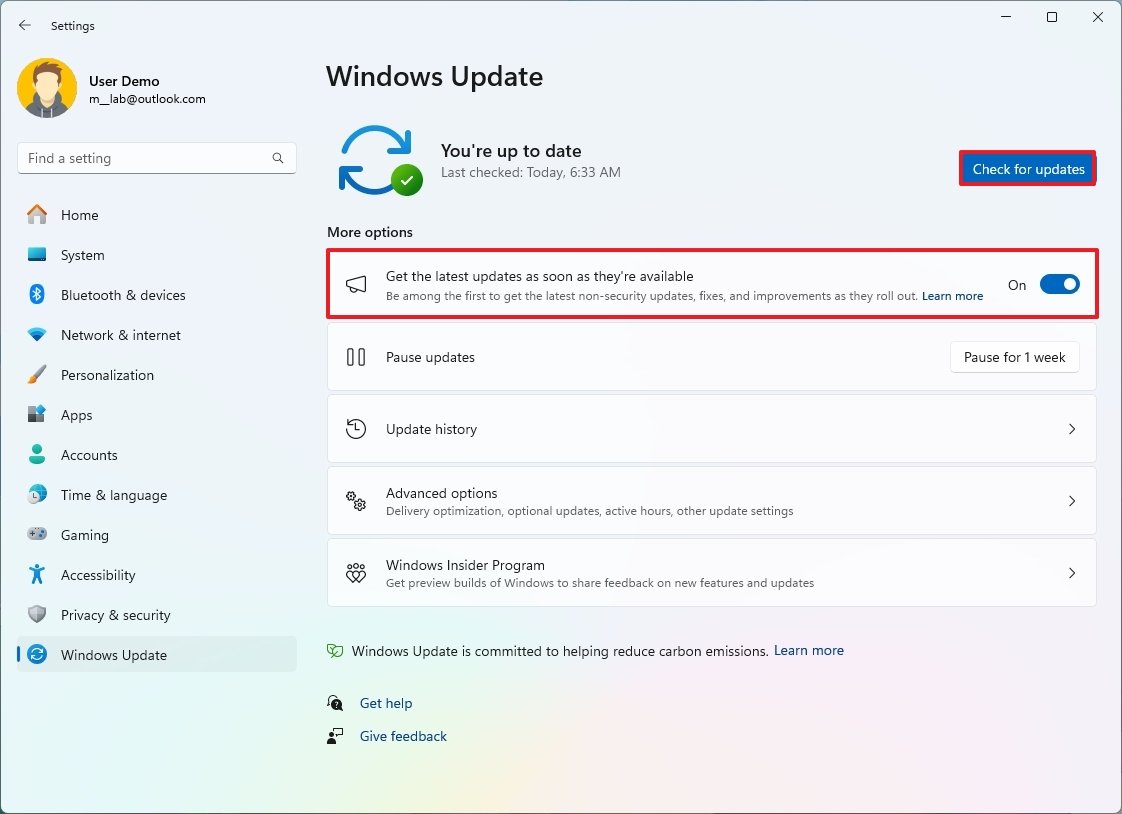
Force Windows 11 update without damaging your system. The good news is that you can try several safe methods using Microsoft’s built-in tools and official installation options.
You may want to force Windows 11 update when:
- Windows Update does not show a newer version.
- An update download is stuck.
- A previous Windows update failed.
- Your PC has an older supported Windows 11 version.
- Windows Update is not working correctly.
- You want to upgrade using Microsoft’s official Installation Assistant.
Before trying an upgrade, back up important files and make sure your computer has enough free storage.
1. Check Windows Update Manually
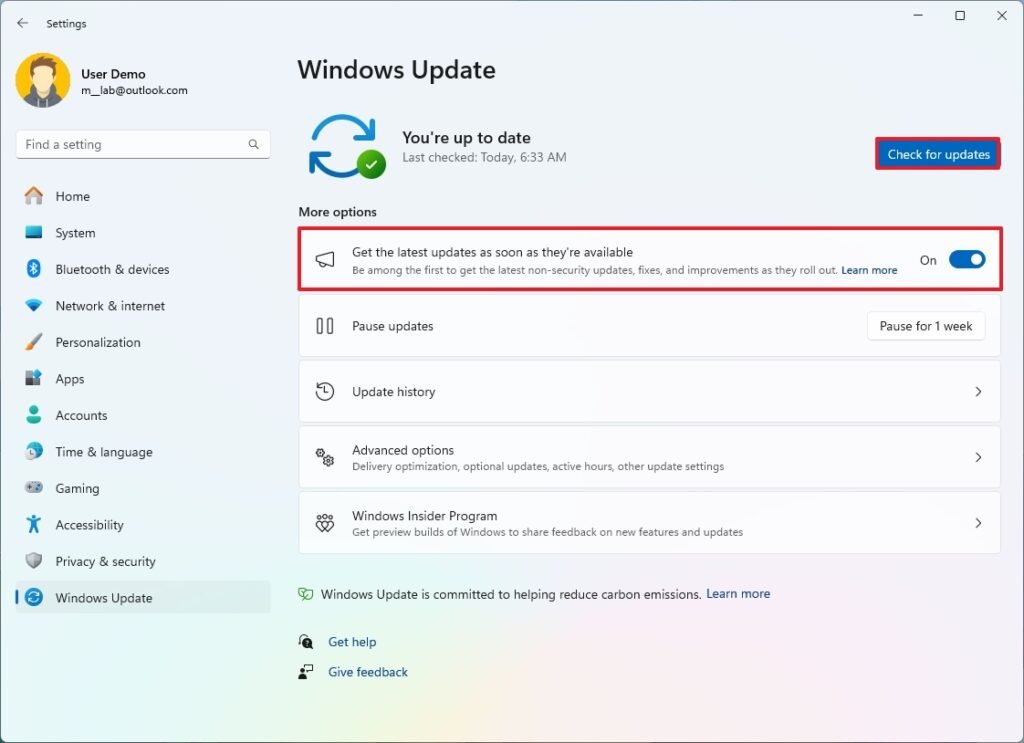
The easiest way to force Windows 11 update is to manually check for available updates.
Go to:
Settings → Windows Update → Check for updates
If Windows finds an available update, select Download and install.
After the download finishes, Windows may ask you to restart your computer. Save your work before restarting and allow Windows enough time to complete the installation.
If no update appears, that does not necessarily mean something is wrong. Microsoft may not have released the update to your particular device yet.
2. Use Windows 11 Installation Assistant
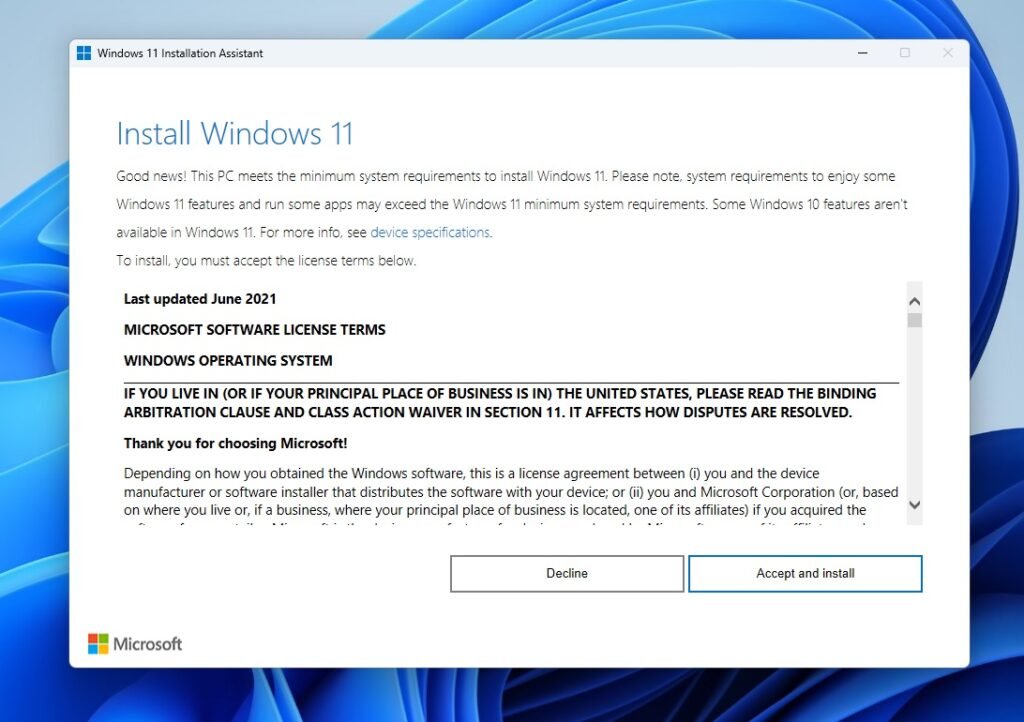
If Windows Update is not offering the version you need, Microsoft’s Windows 11 Installation Assistant can provide another official upgrade method.
You can find the Installation Assistant on Microsoft’s Windows 11 download page:
Microsoft Windows 11 Download Page
Download the tool directly from Microsoft and follow the instructions displayed on screen.
The Installation Assistant can be particularly useful when your PC is eligible for an upgrade but the update is not appearing through the normal Windows Update interface.
Before Using Installation Assistant
Make sure that:
- Your PC meets Windows 11 requirements.
- Important files are backed up.
- Your laptop is connected to power.
- You have enough free disk space.
- Your internet connection is stable.
- Important applications are closed before starting the upgrade.
3. Restart Your Computer and Try Again
Sometimes a simple restart can resolve a temporary Windows Update problem.
Restart Windows 11 and then open:
Settings → Windows Update
Select Check for updates again.
If the update was temporarily stuck because of a background process or Windows service, restarting the system may allow Windows Update to continue normally.
4. Run the Windows Update Troubleshooter
If you cannot force Windows 11 update because Windows Update is producing errors, use Microsoft’s built-in troubleshooting option.
Open:
Settings → System → Troubleshoot → Other troubleshooters
Find Windows Update and select Run.
Windows will check for common problems affecting the update process and may automatically apply some recommended fixes.
After the troubleshooting process finishes, restart your PC and check for updates again.
5. Make Sure You Have Enough Storage
Insufficient storage is another reason a Windows 11 update may fail.
Open:
Settings → System → Storage
Check how much free space is available on your system drive.
If your drive is almost full, remove unnecessary temporary files, old downloads, or applications that you no longer use.
Having sufficient free space gives Windows room to download update files and complete the installation.
6. Restart Windows Update Services
If Windows Update is not responding properly, restarting its service may help.
Press:
Windows + R
Type:
services.msc
and press Enter.
Find Windows Update in the list. Right-click it and select Restart if the option is available.
You can then return to Windows Update and select Check for updates.
This method can help when the update service has temporarily stopped responding.
7. Use Official Windows 11 Installation Media
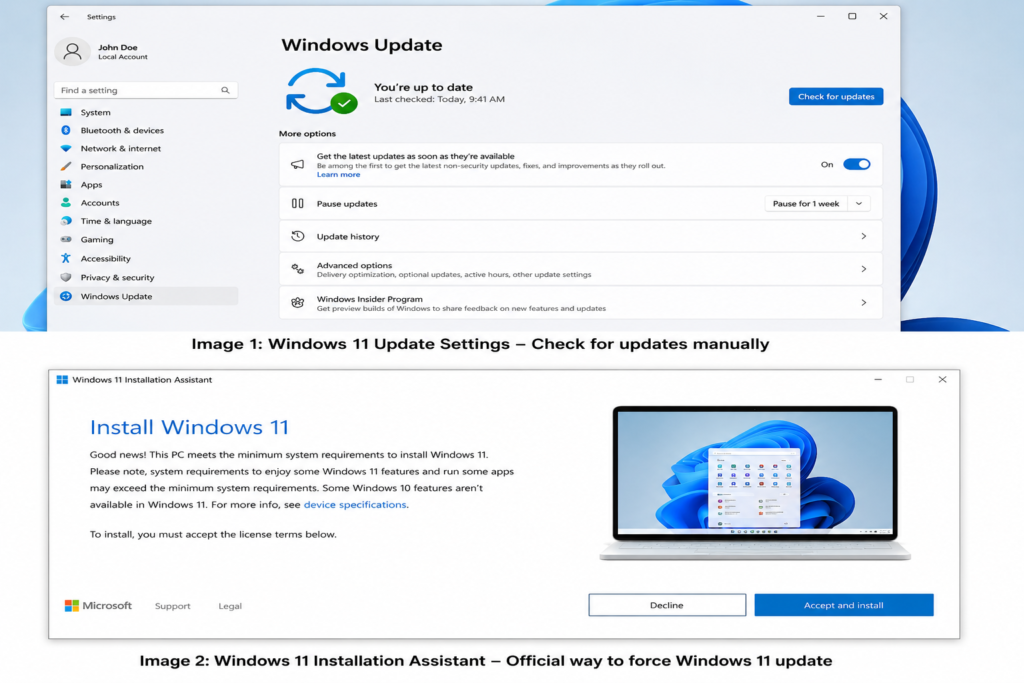
Another way to force Windows 11 update is by using official Windows 11 installation media.
Microsoft provides options for creating installation media and downloading Windows 11 ISO files from its official download page.
This method can be useful when the normal Windows Update process is repeatedly failing.
However, always download Windows installation files from Microsoft. Avoid modified ISO files, unofficial activators, or unknown update tools because they can create security and reliability problems.
Should You Force a Windows 11 Update?
You can use official Microsoft tools to start an upgrade, but forcing an update is not always the best choice.
If Microsoft has temporarily blocked a feature update because of a known compatibility problem, it is usually better to wait rather than bypass the safeguard.
A compatibility hold may involve hardware, drivers, applications, or other system components. Installing an update before the issue is resolved could result in unexpected problems.
For this reason, force Windows 11 update should generally mean using Microsoft’s supported installation methods rather than using unofficial workarounds.
What to Do If Windows 11 Update Failed
If Windows Update failed during installation, first restart your PC and check the update history.
Go to:
Settings → Windows Update → Update history
Look for the failed update and note any error code shown by Windows.
You can then run the Windows Update troubleshooter and try the installation again.
If the same update repeatedly fails, avoid repeatedly forcing the installation without identifying the cause. Driver problems, insufficient storage, corrupted update components, and compatibility issues can all contribute to failed updates.
Can You Force Windows 11 Update Without Losing Files?
A normal supported Windows 11 upgrade is designed to preserve your personal files and applications. However, you should still create a backup before starting any major operating-system upgrade.
Important documents, photos, videos, and other irreplaceable files should be stored on another drive or a trusted backup service.
A backup gives you an additional layer of protection if something unexpected happens during the upgrade.
Why Is Windows 11 Update Not Showing?
There are several possible explanations.
Microsoft may be gradually rolling out the update, your device may have a temporary compatibility hold, or Windows Update may have encountered a technical problem.
Your current Windows version and device hardware can also affect which updates are offered.
If your PC is eligible and the update is not appearing, Microsoft’s Installation Assistant is one of the first official alternatives worth considering.
Frequently Asked Questions
How do I force Windows 11 update?
Start by opening Settings → Windows Update → Check for updates. If the update is not offered, you can use Microsoft’s official Windows 11 Installation Assistant or installation media when your PC is eligible.
Can I force Windows 11 to update immediately?
You can manually check for updates and use Microsoft’s official upgrade tools, but you cannot guarantee that every feature update will be immediately offered. Microsoft may delay an update for compatibility reasons.
Is it safe to force Windows 11 update?
Using Microsoft’s official Windows Update tools, Installation Assistant, or installation media is safer than using unofficial update programs. Avoid bypassing compatibility safeguards unless you understand the potential risks.
Why won’t my Windows 11 update install?
A Windows 11 update may fail because of insufficient storage, driver problems, corrupted update files, incompatible software, or other Windows Update issues. Checking the update history can help identify the problem.
Can I update Windows 11 without Windows Update?
Yes. Microsoft provides the Windows 11 Installation Assistant and official installation media as alternative upgrade methods.
Will forcing Windows 11 update delete my files?
A standard supported upgrade normally aims to preserve personal files and applications, but you should always back up important data before upgrading Windows.
Final Thoughts
If your PC is eligible but the latest Windows 11 update is not appearing, start with Settings → Windows Update → Check for updates. If that does not work, Microsoft’s Installation Assistant and official installation media provide additional options.
The safest approach to force Windows 11 update is to use Microsoft’s own tools and avoid unofficial installers or methods that bypass compatibility protections. If Microsoft has temporarily held an update for your device, waiting for the compatibility issue to be resolved may be the better option.